Clear & Backdate
Clear transactions into history, choose the right date when needed, and adjust the amount before saving.
What Clear & Backdate does
Clear moves a transaction from Forecast into Past and applies it to the account balance.
Backdate lets the Past date match when the transaction actually happened. In older app versions, this was called “Process Early.”
Open the transaction
Use this method when you need to choose a specific date, review the transaction, or change more than the amount.
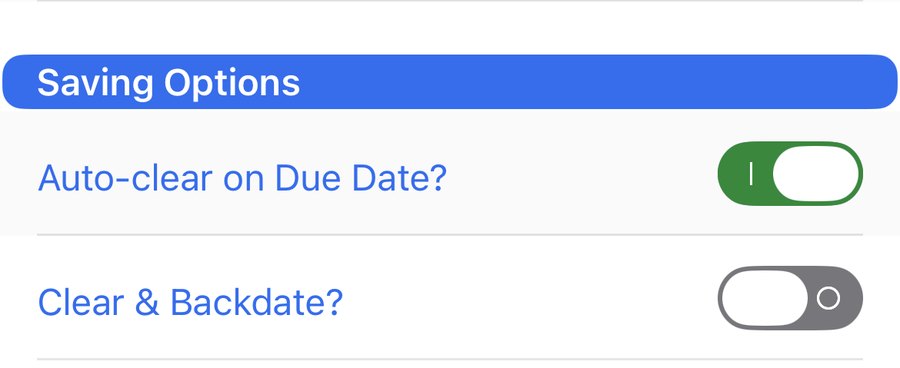
- Open the transaction.
- In Saving Options, turn on Clear & Backdate.
- Choose the correct date.
- Adjust the amount if needed.
- Save the transaction.
This is the best option when the transaction happened on a date other than today, yesterday, or the original past-due date shown by Quick Clear.
Swipe to Clear
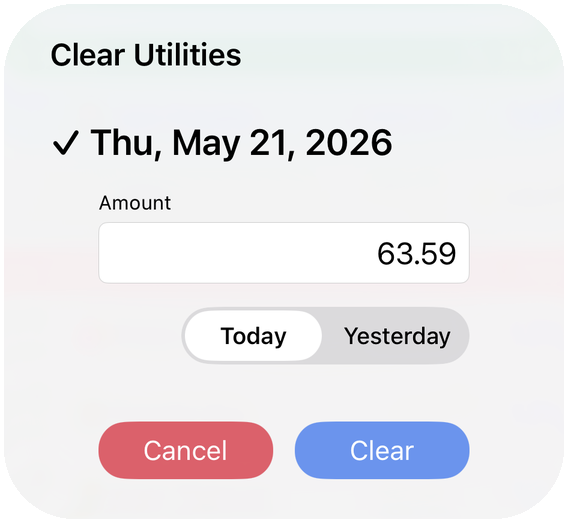
Swipe partway to the right on a transaction in the Forecast list to reveal the blue Clear action. Tap Clear to open the confirmation window.

In the confirmation window, choose Today, Yesterday, or, for an overdue transaction, its original overdue date. You can also change the amount before clearing.
Optional Instant Clear
Instant Clear is disabled by default. Enable it from the Clear confirmation window when you want a full swipe to clear immediately using the default date and amount.
Only a full swipe to the right clears immediately when Instant Clear is on. A partial swipe followed by tapping Clear still opens the confirmation window.
Was this article helpful?
Your vote helps QApps find articles that need clearer steps or better screenshots.
What was missing?