Auto-clear transactions
Choose automatic clearing for predictable items or confirm manual transactions before they move to Past.
Choose automatic or manual clearing
Leave Auto-clear on for predictable plans. On the due date, Foreseenly clears the transaction into Past and updates the account balance automatically.
Turn Auto-clear off when you want to confirm the date or amount first. If the transaction is due today and you turn Auto-clear back on before saving, it can still clear automatically on that date.
Swipe to confirm a manual transaction
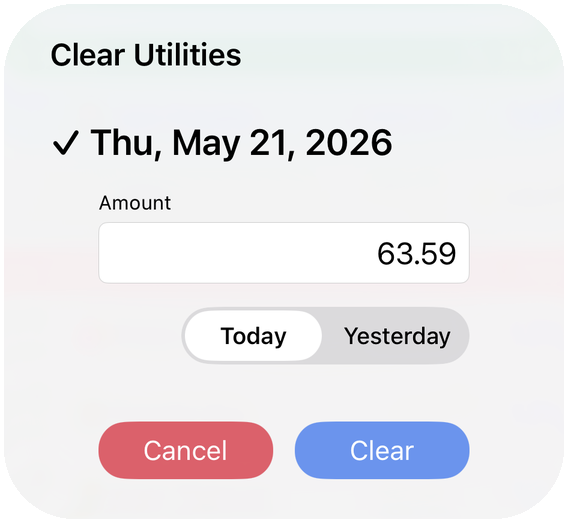
Swipe partway to the right to reveal Clear, then tap it to open the confirmation.

The confirmation can offer Today, Yesterday, and, for an overdue transaction, its original past-due date. Review the date and amount before clearing.
Was this article helpful?
Your vote helps QApps find articles that need clearer steps or better screenshots.
What was missing?