Settings & Base Currency
Use Settings to control Financial Time Zone, Base Currency, forecast display, plan summaries, and data options.
Authentication
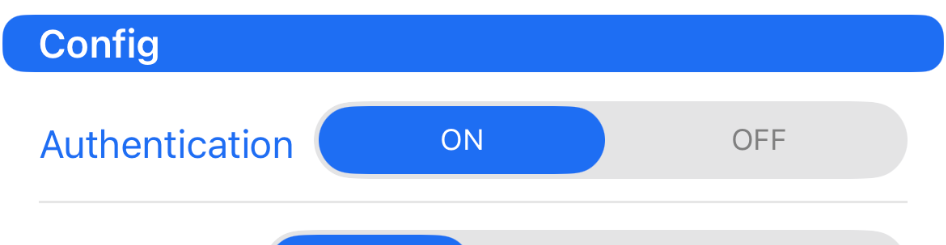
Use Authentication to control whether the app requires authentication before opening.
- ON means authentication is required.
- OFF means authentication is not required.
This adds an extra layer of privacy and protection.
Graph Type

Use Graph Type to choose how your forecast graph is displayed.
Choose Round, Sharp, or Steps. This changes only the graph style, not the forecast data.
Font Size

Use Font Size to make text easier to read throughout the app.
Choose Default, Large, or Extra.
Max Forecast Years

Use Max Forecast Years to control how far into the future Foreseenly can forecast.
For example, 10 means forecasts can display up to 10 years ahead. The current maximum you can set is 15 years.
Default Warn at

Use Default Warn at to set the default warning amount for accounts.
For example, 500 means the app can warn you when a balance reaches that level. You can still set a different warning value for a specific account.
Base Currency

Use Base Currency to choose the main currency used by the app.
- Open Settings.
- Go to Config.
- Tap Base Currency.
- Choose the currency you want.
- Tap the checkmark / save button at the bottom.
Base Currency changes are available only in Foreseenly, formerly known as CashFlow+.
Financial Time Zone
Financial Time Zone controls the dates Foreseenly uses for schedules and transactions.
- Open Settings.
- Go to Config.
- Choose Financial Time Zone.
- Select the time zone of your primary home and bank accounts.
- Save the setting.
Normally leave this setting unchanged while traveling. If changing it would make Today a different date, Foreseenly warns you before saving.
Automatic iCloud Backups

Use Automatic iCloud Backups to control whether the app automatically creates iCloud backups.
- Yes enables automatic iCloud backups.
- No disables automatic iCloud backups.
This is recommended if you want extra protection in case your device is changed, lost, or restored.
Crypto Config

Use Crypto Config for crypto-related forecast settings and related crypto configuration options.
Naming
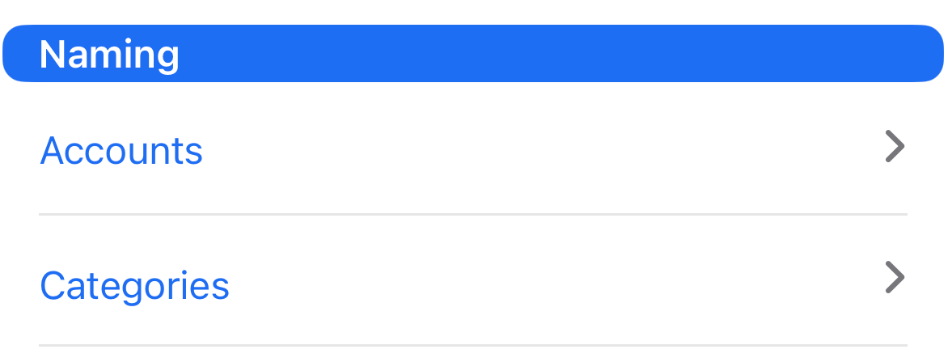
The Naming section lets you manage how things are named inside the app.
- Accounts lets you rename or manage account names.
- Categories lets you rename or manage transaction categories.
Single Transaction Defaults
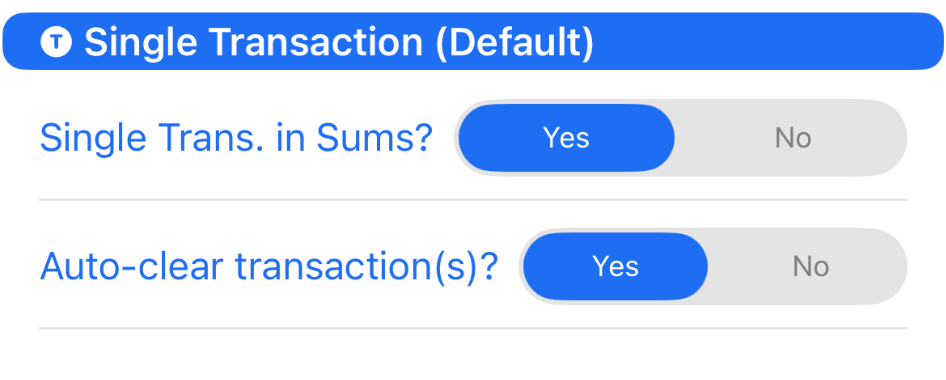
These settings control how single transactions behave by default, especially in the Account Plans view and its summary totals.
Single Trans. in Sums?
This controls whether single transactions are included in Plan summary totals in the Account Plans view.
- Yes includes single transactions in summary totals.
- No keeps single transactions out of summary totals by default.
Auto-clear transaction(s)?
This controls whether single transactions are automatically cleared after they are processed.
- Yes allows them to be cleared automatically.
- No keeps them until you clear them manually.
This can help keep the Account Plans view cleaner after one-time transactions have already been used.
Options
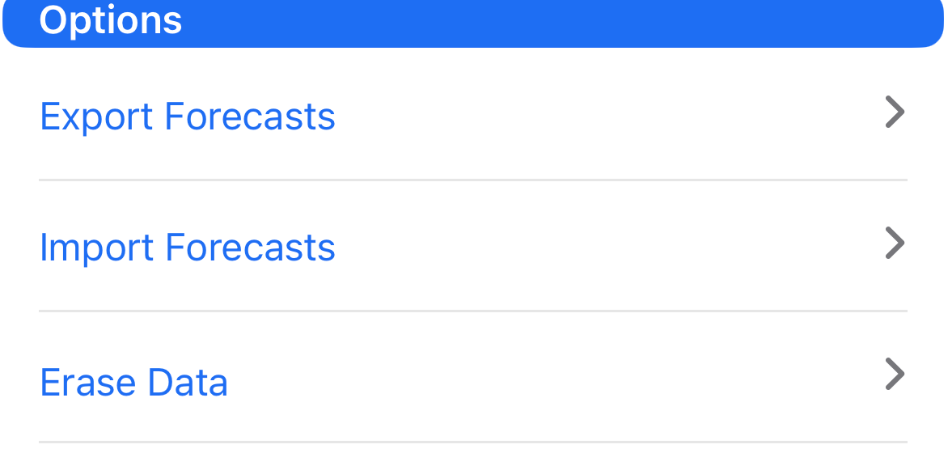
The Options section gives you tools for managing forecast data.
- Export Forecasts exports your forecast data for manual backup or moving data.
- Import Forecasts imports previously exported forecast data.
- Erase Data removes app data. Be careful with this option. Erased data may not be recoverable unless you have a backup available.
Was this article helpful?
Your vote helps QApps find articles that need clearer steps or better screenshots.
What was missing?