Income and Expense Plans
Create recurring income and expense plans so Foreseenly can forecast what is coming next.
Fast answer
An income or expense plan tells Foreseenly what amount to forecast, how often it repeats, and when the next entry should appear.
If you need to change every future occurrence, edit the plan. If only one upcoming item is different, edit that single forecast row instead of changing the whole plan.
This article covers regular income and expense plans. Loan, asset, and transfer-heavy setups may have extra fields.
Required fields
- Category: Choose the main type, such as Salary, Rent, Utilities, Groceries, or another category you use.
- Subtitle: Optional. Use it to distinguish similar plans, such as Company A, Side Job, Chase, or Apartment.
- Amount: Enter the expected amount. If the amount changes often, enter a reasonable estimate and adjust the actual transaction when you clear it.
- Repeats Every: Choose the schedule: Once, Day, Week, Semi, Month, Year, or another supported interval.
- Next Date / On Date: Choose the next date this item should appear in the forecast. In some app versions this field may be labeled On Date.
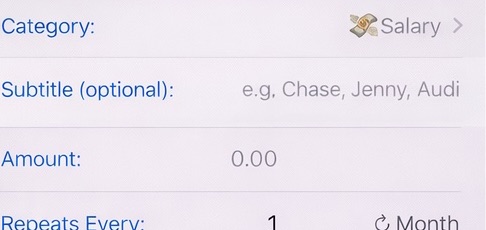
Schedule choices
- Use 1 Month for most monthly bills or paychecks.
- Use 2 Weeks for bi-weekly income or payments.
- Use Semi for twice-a-month schedules.
- Use Year for annual bills, subscriptions, insurance, or taxes.
- Use the last-day-of-month option when the item should always land on the final calendar day of the month.
If the schedule changes later, you can change it from a future start date without changing earlier history. See Change a plan schedule.
Optional settings
- Adjust for: Moves scheduled dates around weekends or holidays when that better matches how the transaction actually posts.
- Transfer From / Transfer To: Use only when money moves between two accounts you track in Foreseenly, such as checking to savings.
- Alert Me: Creates an iOS reminder for items you want to notice before they happen.
- Auto-clear: Lets predictable items update the account balance automatically on schedule.
- End Repeat Date: Stops the plan after a final date, such as the end of a contract, temporary bill, or short-term income source.
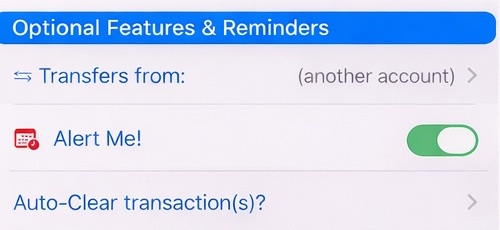
When to use Auto-clear
- Turn Auto-clear on for predictable items, such as fixed salary, rent, or a regular subscription.
- Turn Auto-clear off when you want to confirm the actual amount or date before the item affects the account balance.
- For manual cleanup, swipe a forecast row and use Clear, or open the transaction when you need more control.
For more detail, see Auto-clear transactions and Clear & Backdate.
Common examples
- Salary: Category Salary, subtitle for the employer if needed, repeat schedule that matches your pay cycle, Auto-clear on if the amount is predictable.
- Rent or mortgage escrow: Category Rent, Mortgage, or Escrow, monthly schedule, Auto-clear on if the amount is fixed.
- Variable bill: Use an estimate, leave Auto-clear off, then clear it with the actual amount when it posts.
- Temporary income or bill: Set an End Repeat Date so the plan stops after the final occurrence.
If one upcoming item changes
Do not edit the whole plan just because one forecasted item is different. Open the single forecast row under the chart and adjust that occurrence.
If an expected income or expense will not happen at all, change that single upcoming amount to 0. The forecast updates without changing future scheduled entries.
Related help
Was this article helpful?
Your vote helps QApps find articles that need clearer steps or better screenshots.
What was missing?