Filters and How to Save them
Working with Filters
Overview
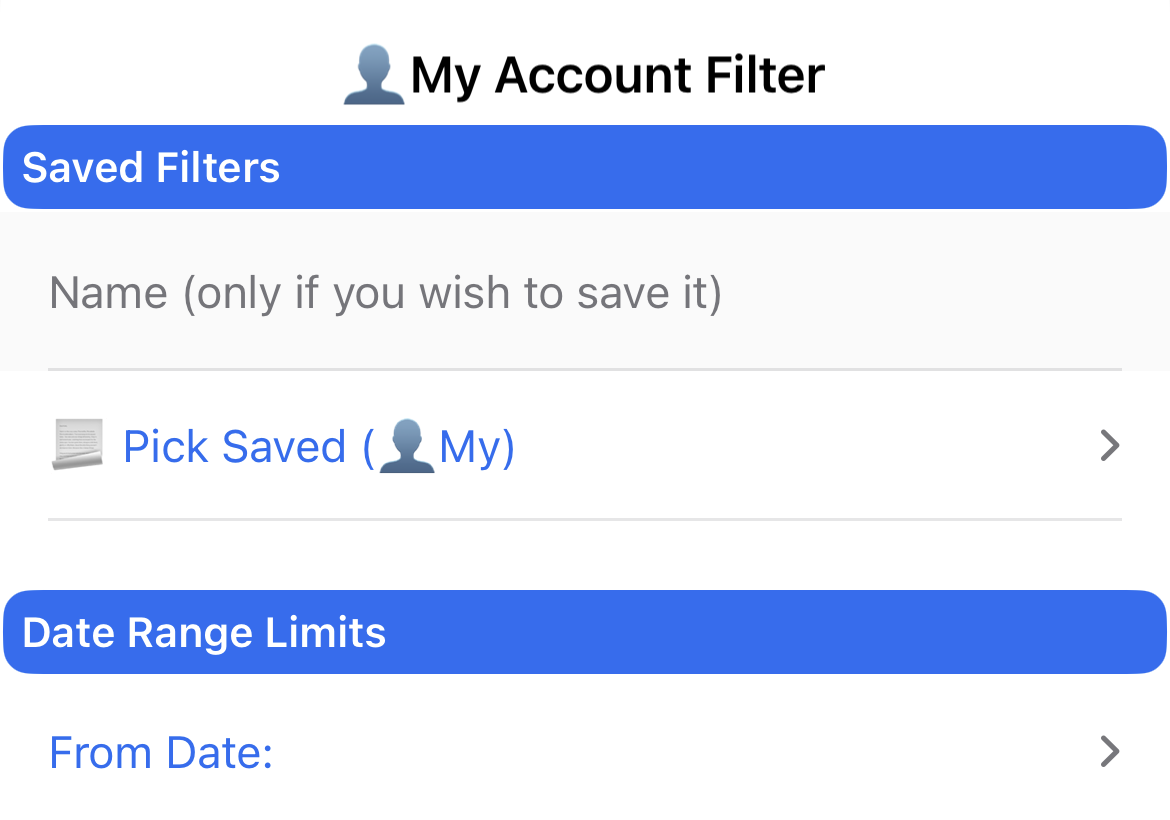
By default, your last-used filter is remembered automatically. To save it, give it a Name in the Saved Filters section. The next time you tap the "filter" button at the bottom of the Filter screen, it will save it and appear under Pick Saved in the Saved Filters section.
Note: filters are stored per account or under All Accounts. A filter saved under one account cannot be used in another. To create a cross-account filter, switch to All Accounts first.
Need more help? Search this product's help articles, share a product idea, or send a ticket if you still need help.
Was this article helpful?
Your vote helps QApps find articles that need clearer steps or better screenshots.
What was missing?